Create your account
Sign up at frontboard.ervina.org, choose a plan, and add your payment method securely. Your 30-day free trial starts after payment setup is complete.
Built by a classroom teacher
FrontBoard puts your learning intention and success criteria on two classroom screens and changes them with your bell schedule. Type a change on your laptop and the wall updates instantly. No whiteboard rewrites between periods.
$4.99 a month after your trial. Works with a Fire TV Stick or any Fire TV.
Try it: click any field and type. The screens above change as you type.
Why teachers use it
Administrators look for clear learning intentions and success criteria on the wall. Keeping them current by hand takes time you could spend teaching.
Six periods can mean six different lessons. FrontBoard follows your schedule and shows the right lesson for each class automatically.
Lesson running long? Edit it from your laptop and both screens update right away, without walking to the front of the room.
FrontBoard runs on two smaller screens beside your interactive panel, so your slides and demos keep the big display.
In a real classroom
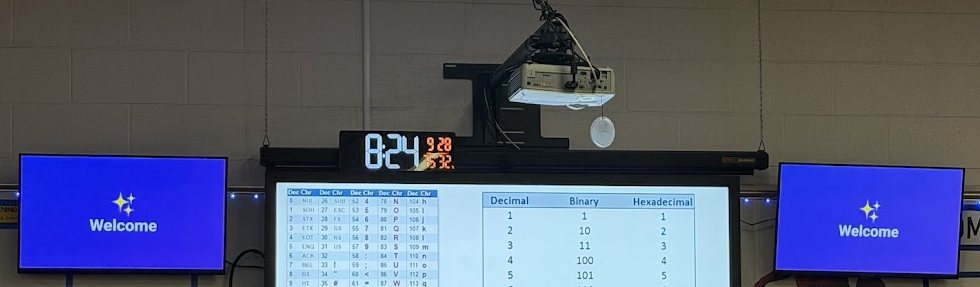
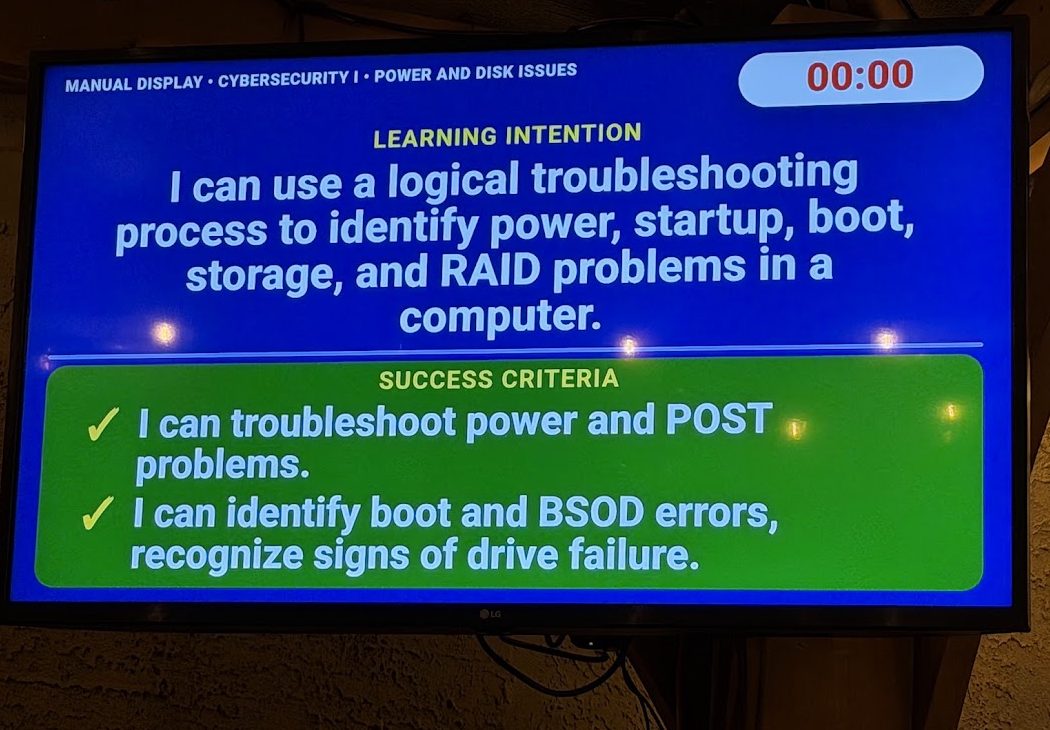
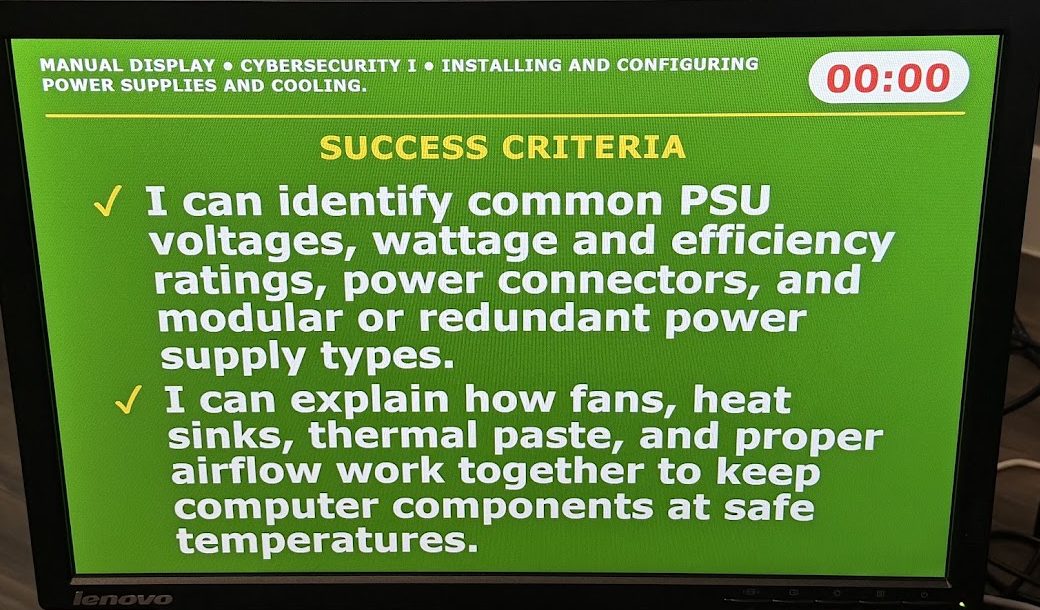
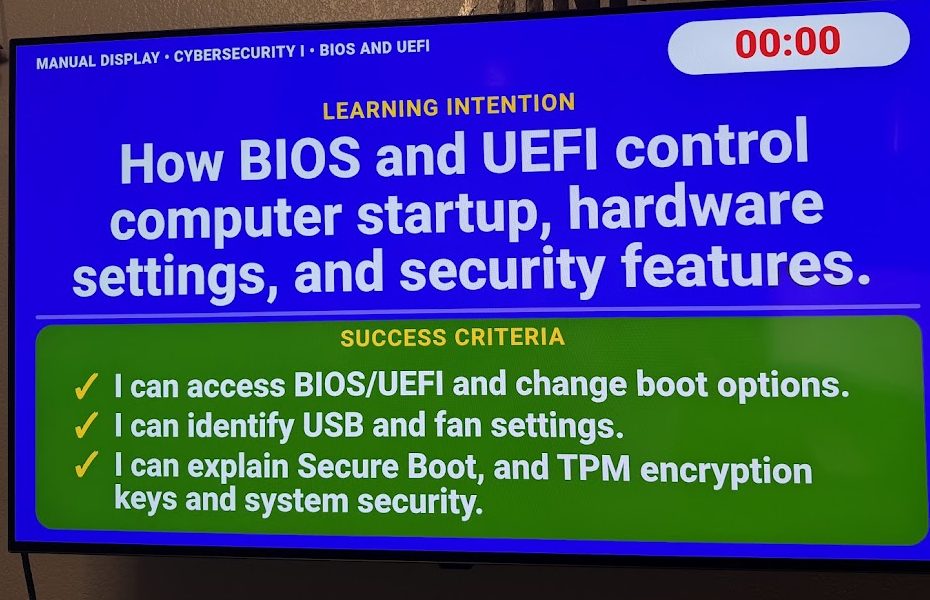
This is FrontBoard running on two TVs on either side of the main board, every school day.
How it works
You don't install anything on your school computer, and you don't need an IT ticket.
Sign up at frontboard.ervina.org, choose a plan, and add your payment method securely. Your 30-day free trial starts after payment setup is complete.
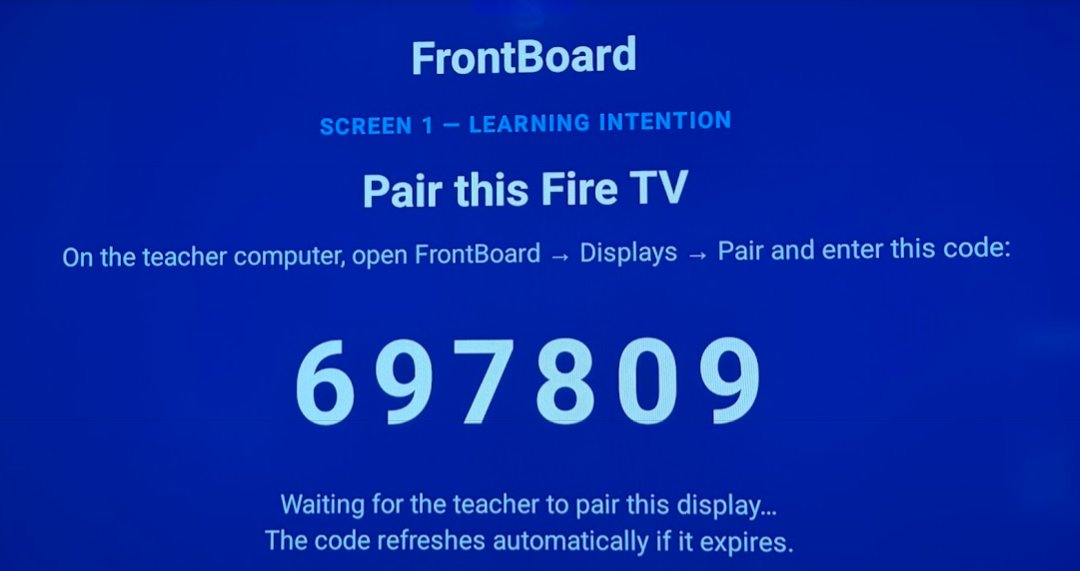
Open the FrontBoard app on a Fire TV. It shows a 6-digit code. Enter it under Displays → Pair and the screen is linked.
Write your learning intention and success criteria once. FrontBoard shows them in the right period, every day.
~$30–50 per screen
Plugs into the HDMI port of any TV or monitor you already have. FrontBoard starts on its own every time the screen powers on.
~$60–80 per 32" TV
No stick or extra cable. Install FrontBoard from the Amazon Appstore and pair it.
$0 extra
Open the pairing page in a browser on a computer connected to the screens. Good for testing before you buy anything.
Only have one screen? Choose the one-screen combined view and FrontBoard shows the intention and criteria together.
Set it and forget it
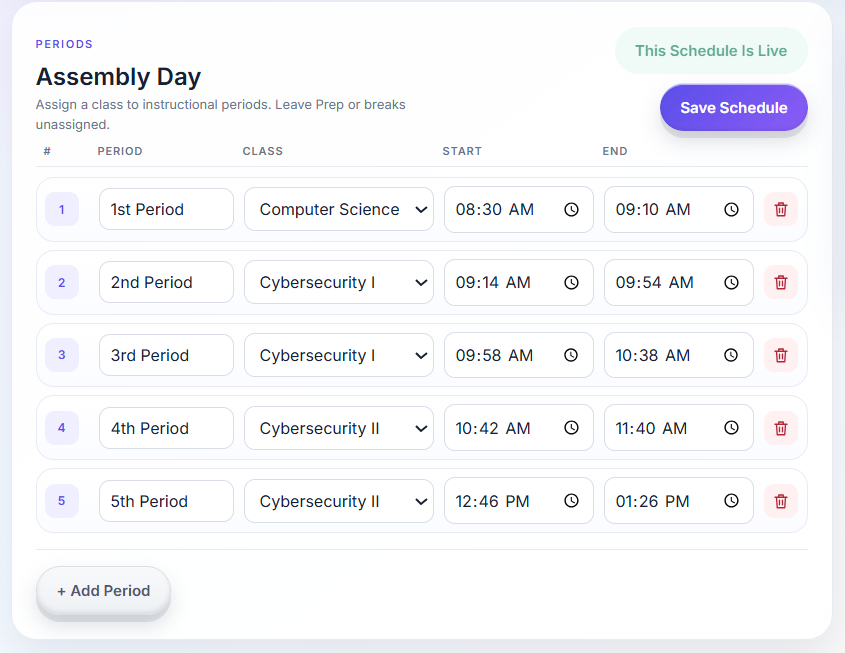
Enter your periods and start times, assign a class to each one, and make the schedule live. Every screen switches lessons on its own as the bells change.
Welcome screens
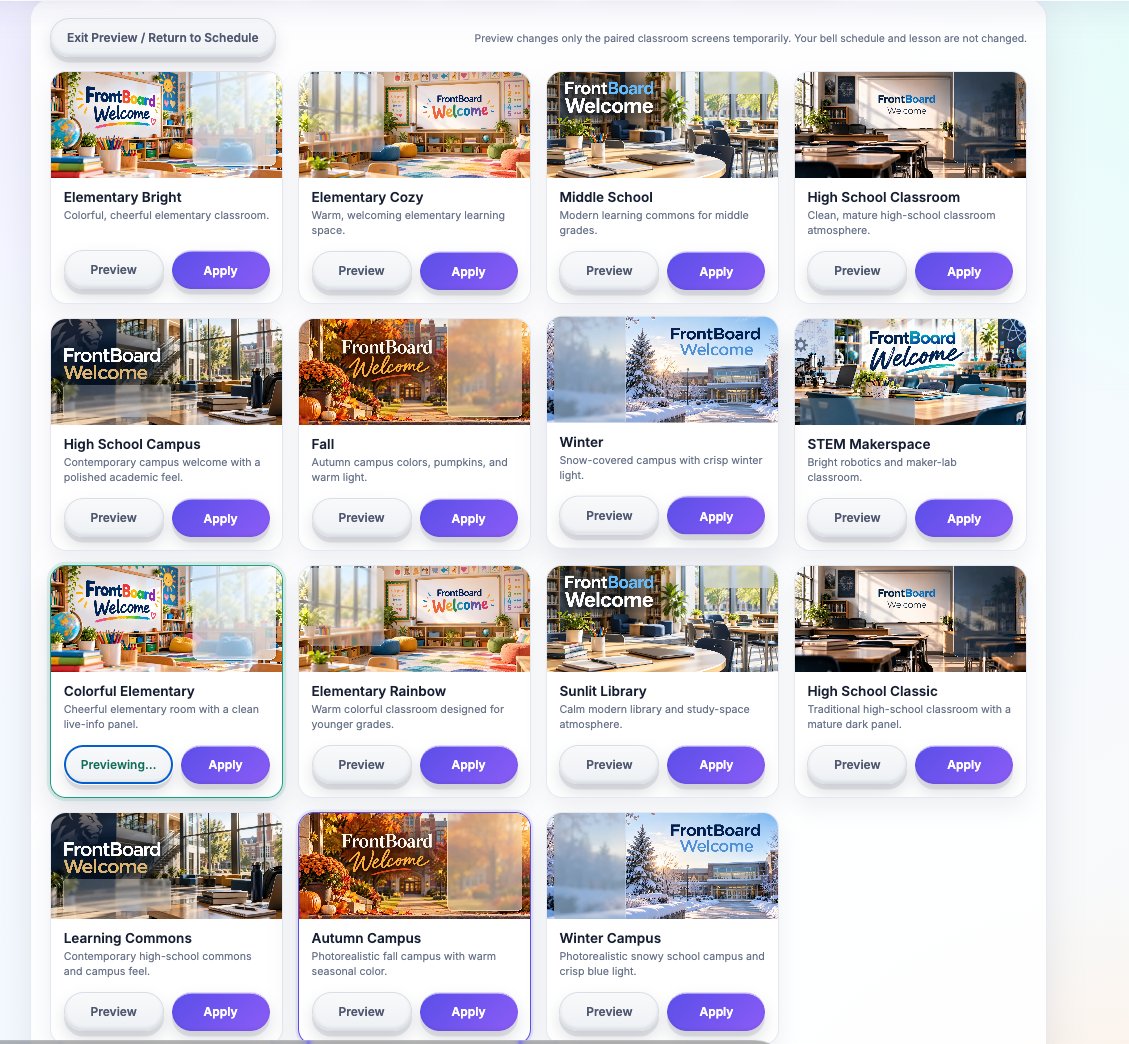
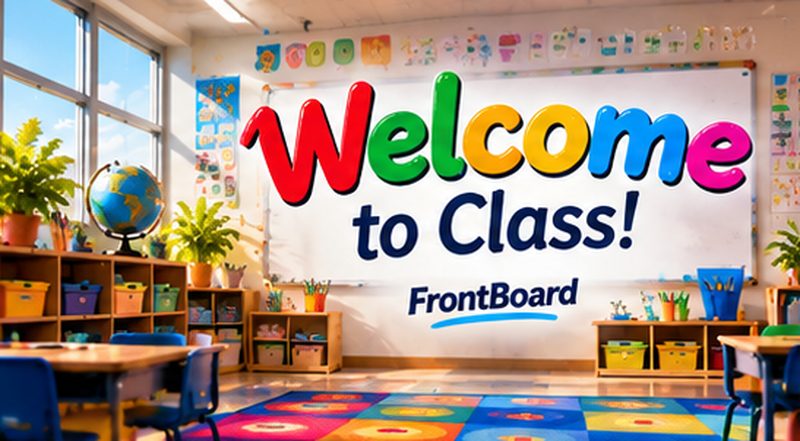
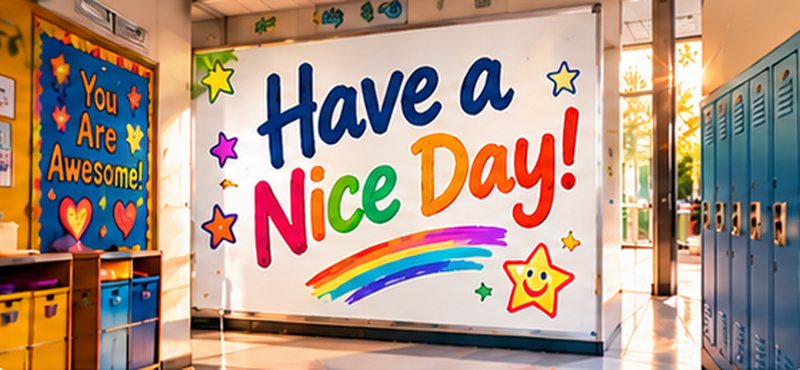
Before the bell, your screens greet students with a full-screen background. Choose from a large library made for elementary, middle and high school classrooms, with themes for every season and holiday. When the last bell rings, a Have a Nice Day screen made for their grade level sends them off.
















What's included
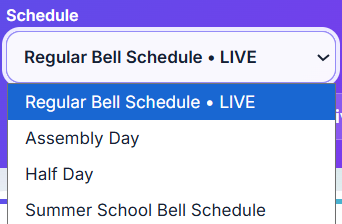
Each period shows its own lesson. Keep several bell schedules and switch between them in one click.
Edit from your laptop, phone, or the classroom computer. The wall changes right away.
Intention on Screen 1 and criteria on Screen 2, or both together on a single screen.
After a power outage or restart, paired screens come back to your lesson without you touching them.
Large, high-contrast text designed for classroom distances, not for a desktop monitor.
Students never sign in or type anything. FrontBoard only stores your classes, schedule, and lesson text.
Pricing
One teacher, all your classes, up to two paired classroom screens. Both plans start with a 30-day free trial.
A card is required to start the trial. Cancel before day 30 and you won't be charged. Payments are processed securely by Stripe.
Questions
No. You manage FrontBoard in a web browser. The screens run the FrontBoard app on a Fire TV or Android TV, or a browser page, so there is nothing for IT to approve on your teacher computer.
Yes. Choose the one-screen combined view when you pair it, and the learning intention and success criteria appear together.
A paired screen starts FrontBoard automatically and reconnects to your account. You don't need to pair it again.
A payment method is required to start the 30-day free trial so your screens can keep working without interruption when the trial ends. Cancel any time before day 30 from your account and you won't be charged.
No. Students don't have accounts and never enter anything. FrontBoard stores only what you type: your classes, schedule, and lesson text.
Yes. Any card works, including a school purchasing card. If several teachers in your building want FrontBoard, ask us about a group plan.
Set it up this week and see your lesson on the wall before the next bell.